Sometimes when trying to craete new Biztalk project in VS 2008, we may encounter is error.In addition to this error in IDE, a Warning also will be generated in Application Log as "One or more templates do not match any installed project packages."
The reason is Biztalk projects are internally treated as C# projects. So during any reapair or update to VS 2008 , a registry entry will be overwritten.
We have 2 solutions for this issue.
1.Doing a reapair to Biztalk Server will solve the issue as during Biztalk installation the registry entry will be updated to support Biztalk Projects. You can either run the Biztalk Installation -setup.exe or directly go to Control Panel->Programs and Features->Add/Remove Programs->Biztalk Server 2009 -> Repair.
2. Change the value of the following registry entry from csproj: to csproj;btproj.
The Registry key will be available at
For 32-bit versions of Visual Studio 2008:
HKEY_LOCAL_MACHINE\SOFTWARE\Microsoft\VisualStudio\9.0\Projects\{FAE04EC0-301F-11d3-BF4B-00C04F79EFBC}\PossibleProjectExtensions
For 64-bit versions of Visual Studio 2008:
HKEY_LOCAL_MACHINE\SOFTWARE\Wow6432Node\Microsoft\VisualStudio\9.0\Projects\{FAE04EC0-301F-11d3-BF4B-00C04F79EFBC}\PossibleProjectExtensions
Showing posts with label Installation. Show all posts
Showing posts with label Installation. Show all posts
Tuesday, 25 January 2011

Sunday, 31 October 2010
10 Steps to Install BizTalk Server 2009 !!
Below are few points to consider before you plan to install Microsoft BizTalk Server 2009 for Learning.
Below is the Pre-Requisite Software you need, before you start installing BizTalk Server.
Now BizTalk Server 2009 can be installed in 10 Simple Steps.
These steps will help you in Installing BizTalk Server locally.
- Shiv

- Never install BizTalk Server in Windows XP - Many experts suggest this one for security and reliability reason.
- It’s better to create a Separate Virtual PC and install BizTalk Server on that so that it will no disturb your normal PC and can easily back up.
- Instead of Installing BizTalk Server on Windows Server 2008, I preferred to install it on Windows Server 2003 as 2003 version needs lesser configuration than 2008. Moreover 2008 version is very slow on my fewer configurations PC.
Below is the Pre-Requisite Software you need, before you start installing BizTalk Server.
- Microsoft Virtual PC 2007.
- Windows Server 2003 R2 ISO.Trail Version is available in the below link.http://www.microsoft.com/windowsserver2003/r2/trial/installinstruct.mspx?lc=1033
- Microsoft Visual Studio 2008 ISO.Trail Version is available in the below link.http://www.microsoft.com/downloads/en/details.aspx?FamilyID=83c3a1ec-ed72-4a79-8961-25635db0192b
- Microsoft Visual Studio 2008 SP1 ISO.Available in the below link.http://www.microsoft.com/downloads/en/details.aspx?FamilyID=27673c47-b3b5-4c67-bd99-84e525b5ce61&displaylang=en
- BizTalk Server 2009 redistributable CAB file for Windows Server 2003.Download from the below link.http://go.microsoft.com/fwlink/?LinkID=137166Note: A different cab file will be there for different versions of OS.
- Optionally you may need SQL Server Management Studio if you need to access the BizTalk Management Database.
Download from the below link for free.
http://www.microsoft.com/downloads/en/details.aspx?FamilyID=08e52ac2-1d62-45f6-9a4a-4b76a8564a2b&displaylang=en
Now BizTalk Server 2009 can be installed in 10 Simple Steps.
- Install Virtual PC 2007 on your Windows XP OS and create a new Virtual Machine with a Virtual Hard disk following the wizard.
- Install Windows Server 2003 using the ISO into the new Virtual Machine.
- Install Visual Studio 2008.
- Install Visual Studio 2008 SP1
- Start installing BizTalk Server 2009 by selecting the required components.
- In Step #5, incase if you forget to select Developer Tools and SDK, project template and development tools will not be available in Visual Studio 2008. Incase if Visual Studio 2008 SP1 is not installed, this check box will be disables.
- When you are asked for installing BizTalk Pre Requisites, select the last option and browse the BizTalk Server 2009 redistributable CAB file for Windows Server 2003 which is downloaded in the earlier steps.
- It will take few minutes to extract the files from cab file and complete the installation. Don’t be panic.
- That’s It. Installation of the basic components of BizTalk Server is DONE !!
- Customize the settings based on your need. Else go with the Basic Configuration.


Note: Installing BAM Require additional pre requisites like Excel 2007. Please refer MSDN for more details.

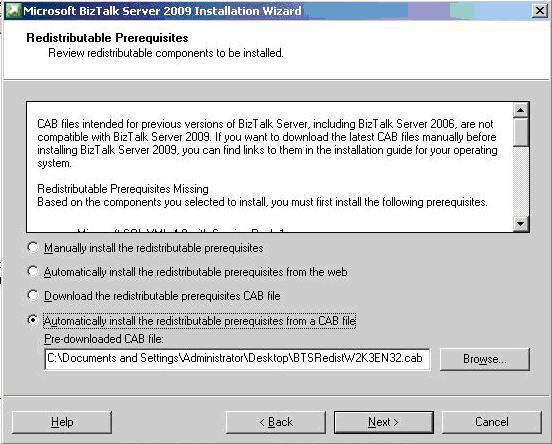


These steps will help you in Installing BizTalk Server locally.
- Shiv
Subscribe to:
Posts (Atom)